Installing the front end and REST service
To install the front end and REST service on an IEE application server:
-
On the IEE installation package, go to the IEE Install Suite folder, and launch the IEE Install Suite installer.
-
Double-click IEEInstallSuite.exe to open the file. This will start the extraction process for the contents of the installer. This may take several minutes.
-
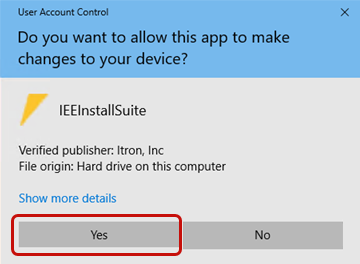
When the extraction process has completed, the User Account Control dialog will appear, select Yes.
-
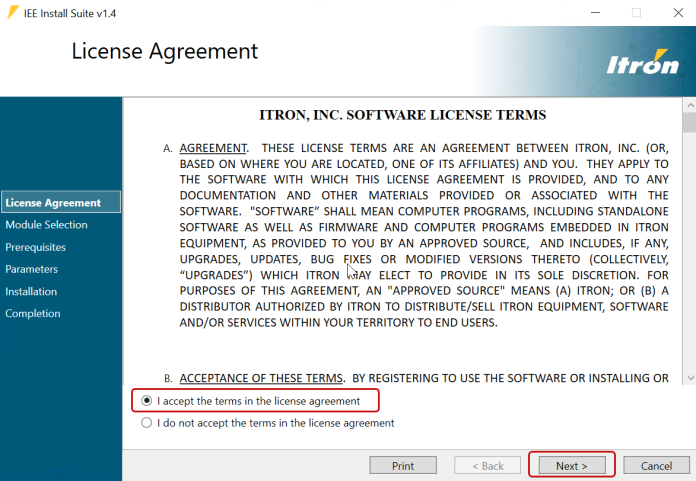
On the Itron Software License Agreement screen, read the agreement, select I accept the terms in the license agreement, and then select Next.
-
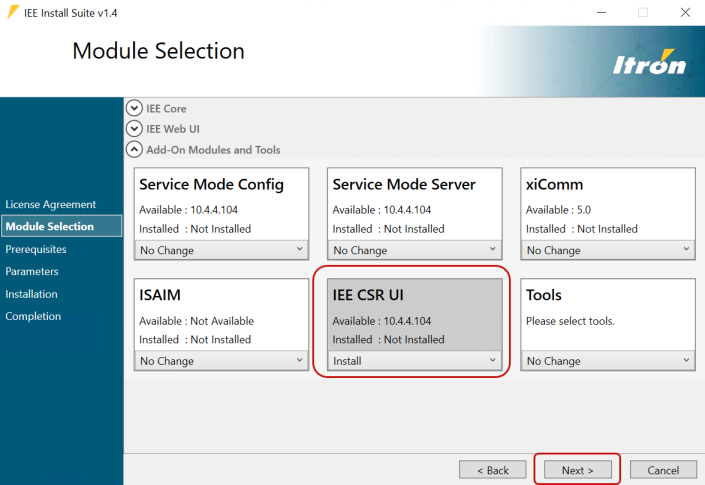
From the IEE CSR UI dropdown menu, select Install, and then select Next.
-
Select Proceed to begin the installation. The installation may take several minutes.
-
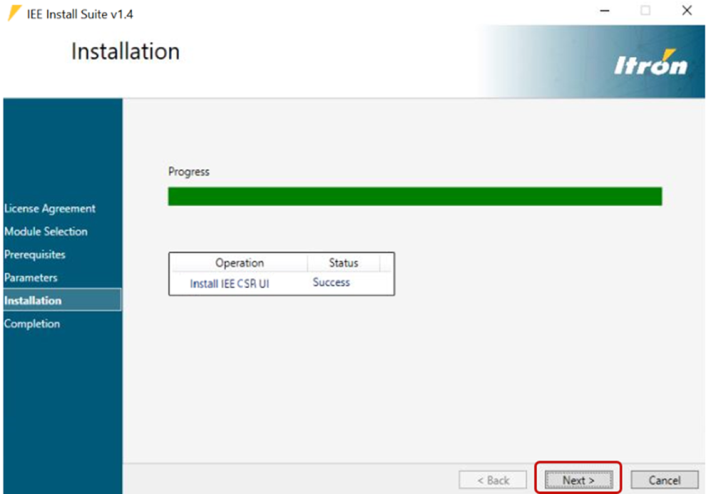
When the installer has completed the installation, select Next.
-
On the Completion screen, select Finish to close the installer.
Important! ItronEE Application Server does not restart automatically after the installation has completed; you must restart the service manually.
Note: If the installation failed, select Open Failed Installation Log to view the log file, correct the issue, select Next, and repeat the installation process.
-
Navigate to the subfolder "MdmWeb" (for example, C:\Program Files\Itron\Enterprise Edition\MdmWeb) and open the Web.config file in a text editor as an administrator (in order to save it). Find the following line:
<add key="iee:serviceRoot" value="http://localhost:8080/api/"/>
Change it as follows:
<add key="iee:serviceRoot" value="http://{server-name}/mmdmwebapi/api/"/>
Note: Replace {server-name} with the fully qualified domain name of the deployment server.
-
Add the Google API key.
-
While still in the MdmWeb folder, and open the index.cshtml file in a text editor as an administrator (in order to save it).
-
Find line 14:
<script src="https://maps.googleapis.com/maps/api/js?v=3.exp"></script> -
Replace line 14 with the following, and insert your Google apps API key where it says {YOURAPIKEYHERE}:
<script async defer src="https://maps.googleapis.com/maps/api/js?client={YOURAPIKEYEHERE}&v=quarterly&callback=initMap"></script>
-
-
Ensure that there are no errors in the modified line. From a command prompt window launched as an administrator, run the following command:
iisreset
-
Return to your workstation and run the application in a browser to test your changes.